TOVA / YOUTUBE SHORTS
Watch it in action

TOVA: AI Video Enhancement & Creative Editing in One App
An official introduction to TOVA’s AI video enhancement and creative editing. Find a starting point for your material below, then follow the workflow through editing, enhancement and export.
Watch on YouTube ↗If the player is unavailable, watch on YouTube.
01 / Before you begin
Before you begin
Start with the material you have
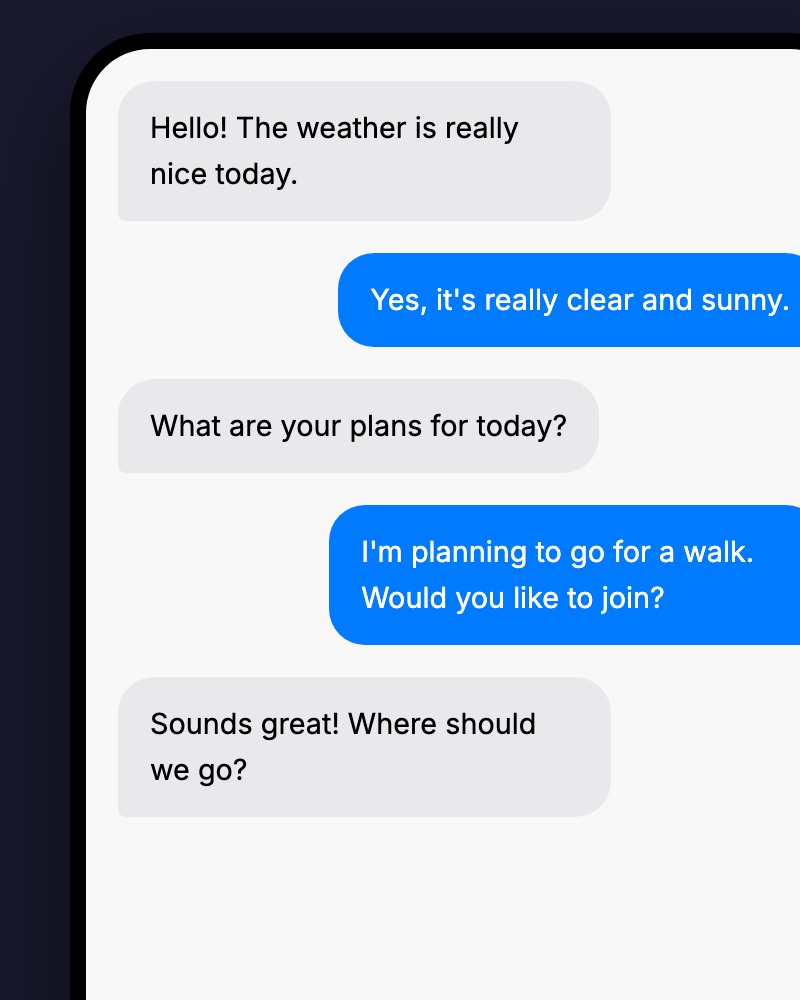
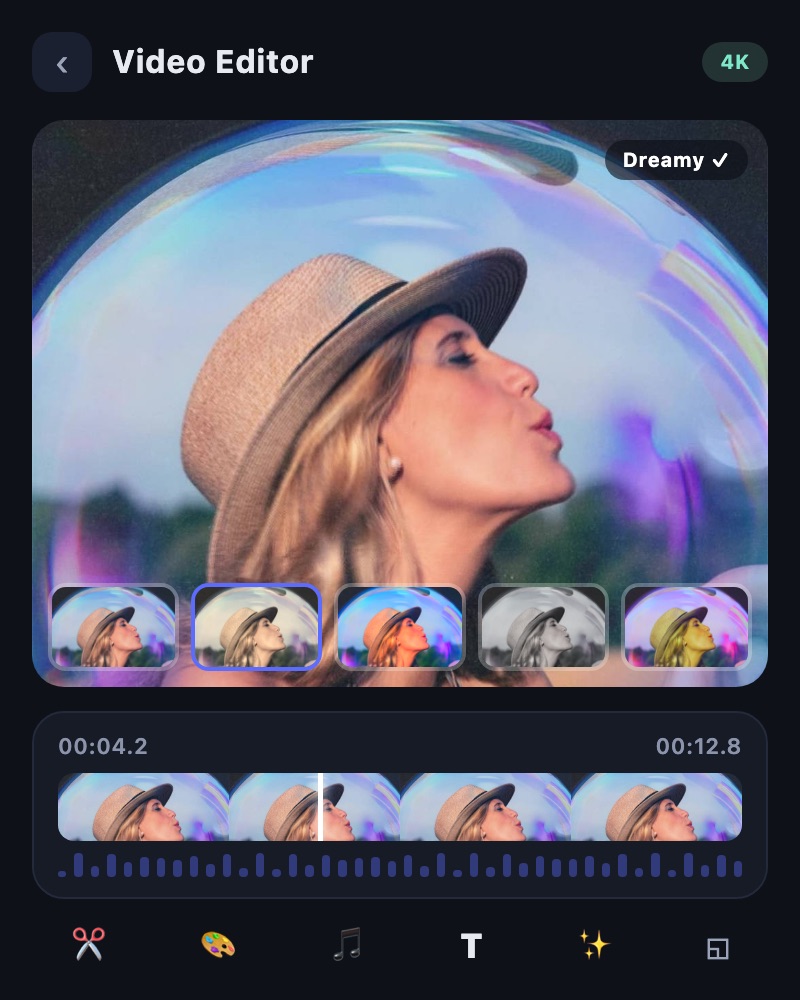
Try Slide for a photo sequence with music, or Video Editor when you want to combine photos and footage with more control. Explore text-to-video or image-to-video for a new AI-generated scene. For a conversation-led story, you can open the connected TalkMaker service from TOVA.
Give editing and enhancement different jobs
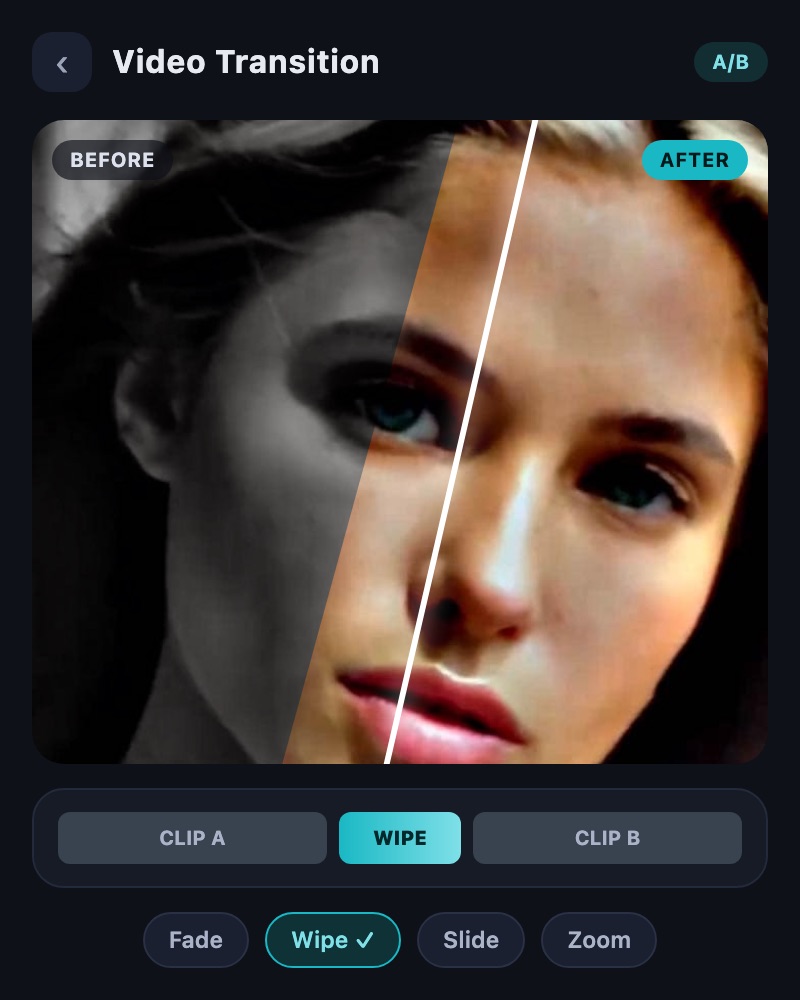
Editing determines which moments appear, their order and how long they stay on screen. Enhancement addresses qualities such as detail, output size or motion. Establish the story first, then decide which parts need additional processing.
Try a short section before processing more
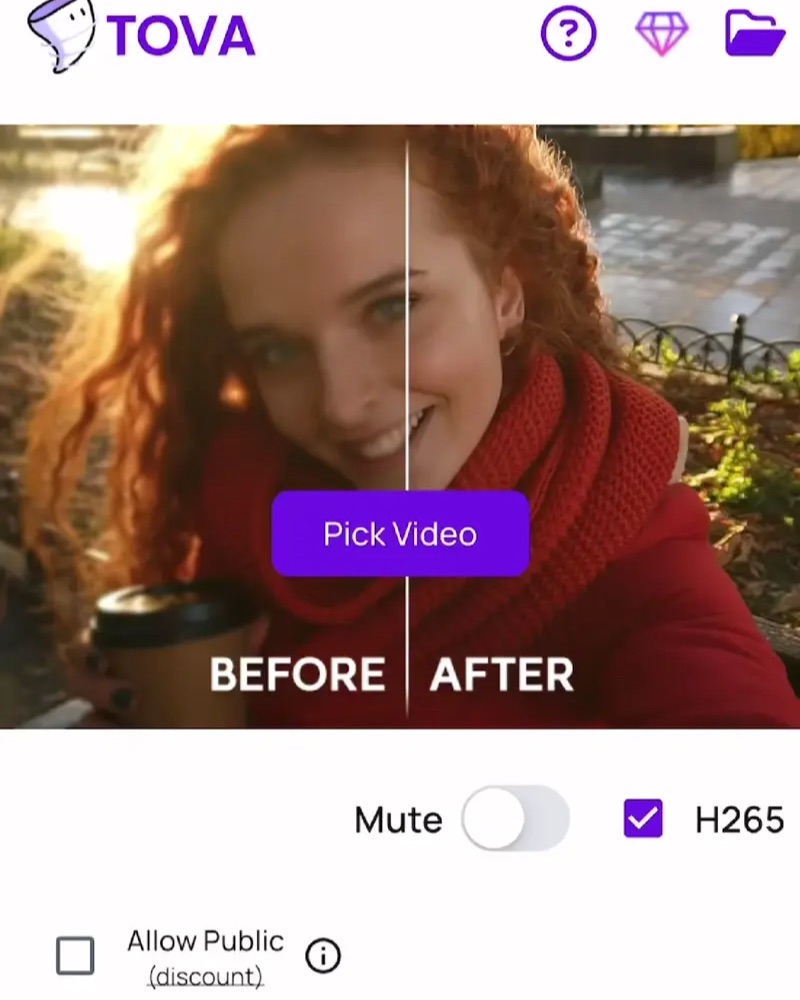
Test a new effect or AI process on a short section. Compare faces, text and fast movement against the source before continuing. Check the current app screen for available output options and any usage conditions.
Finish for the screen where it will be watched
Decide whether the result is a vertical short or a landscape video to watch together. Check framing, readable text and the balance of music and speech before exporting. If the file is too large to send, keep the original and make a compressed sharing copy.
02 / Follow these steps
Follow these steps
Describe the purpose in one sentence and select the photos or clips you need.
Choose a tool for the job: Slide for a photo sequence, or Video Editor for a mixed edit with photos and footage.
Arrange an opening, the main content and an ending; then add text and music.
If needed, test detail, brightness or motion enhancement on a short section and compare it with the source.
Export for the destination screen and play the saved file all the way through.
03 / Try this sequence
Try this sequence
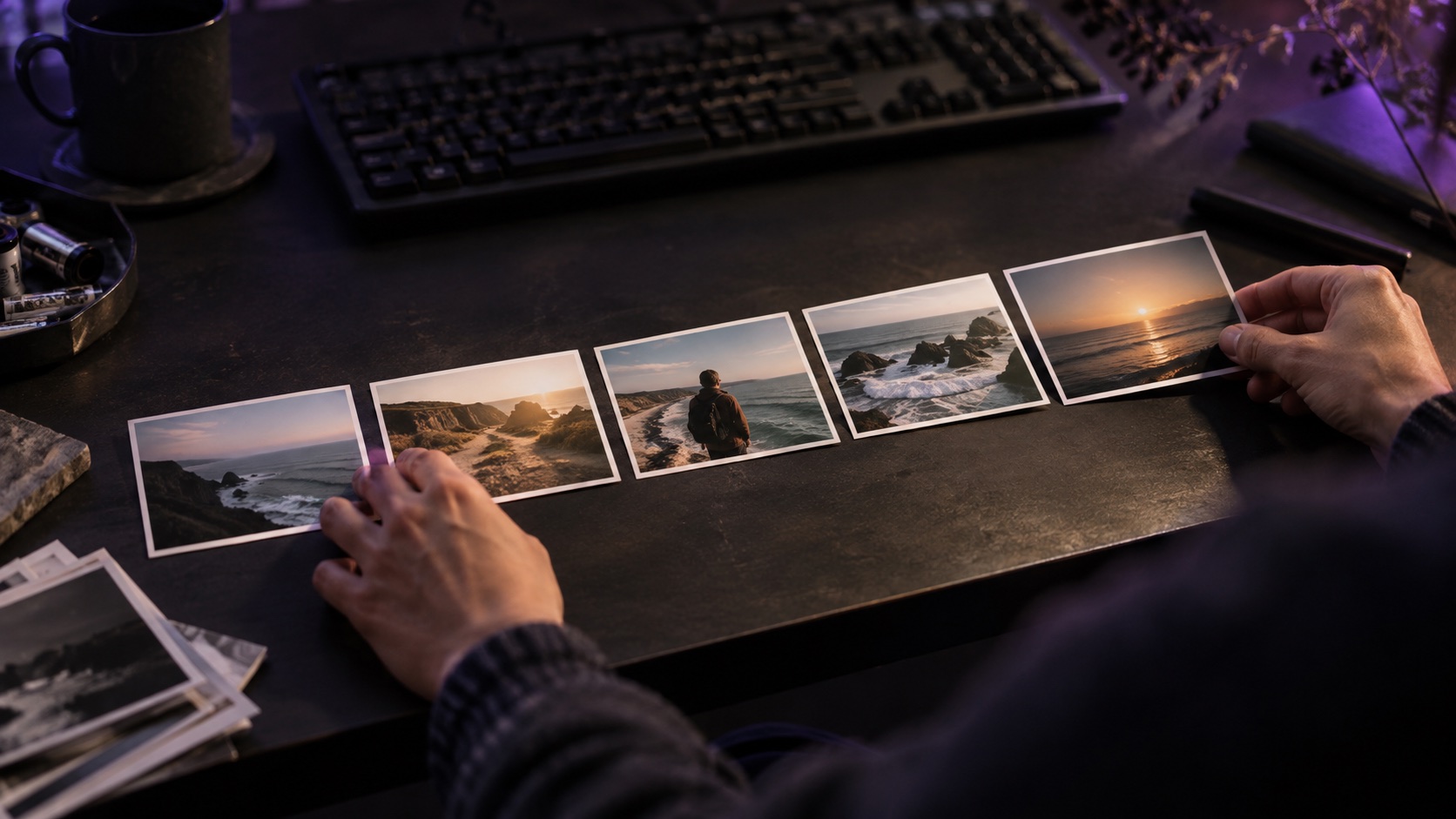
For a weekend café visit, try an exterior photo → a short arrival clip → a drink photo → a view of the space → a closing photo in Video Editor. For a simpler album made entirely from photos, start with Slide. Add a title and music after the sequence makes sense on its own.
Before you export
- Does the selected tool suit your material and purpose?
- Does the sequence make sense before you add effects?
- Are the subject, text and sound clear on the destination screen?
- Have you kept the source and project, and checked the exported file?
Frequently asked questions
How is Slide different from AI image to video?
Slide arranges selected photos with music, text and transitions. AI image to video requests new motion based on an image. Choose according to whether you want to present your existing photos or generate a moving scene.
Will enhancement make every video clear?
Results depend on source resolution, compression, camera movement and the subject. Missing detail is not always reconstructed accurately. Test a short section and compare it with the original.
Do all tools work in the same way?
Tools may use on-device processing, cloud processing or a connected service. Available features depend on the app version and device. Check each screen for current options and the terms of AI or other processing tasks.
Available tools and export settings vary by app version and device. Check the app for the terms of AI generation and cloud processing.