01 / Before you begin
Before you begin
Find the best available source
If you still have the original recording, use it instead of a file repeatedly forwarded through a messenger. Choose a reference scene before processing: faces, signs and hair make useful details to compare.
Start in Quality Enhancer
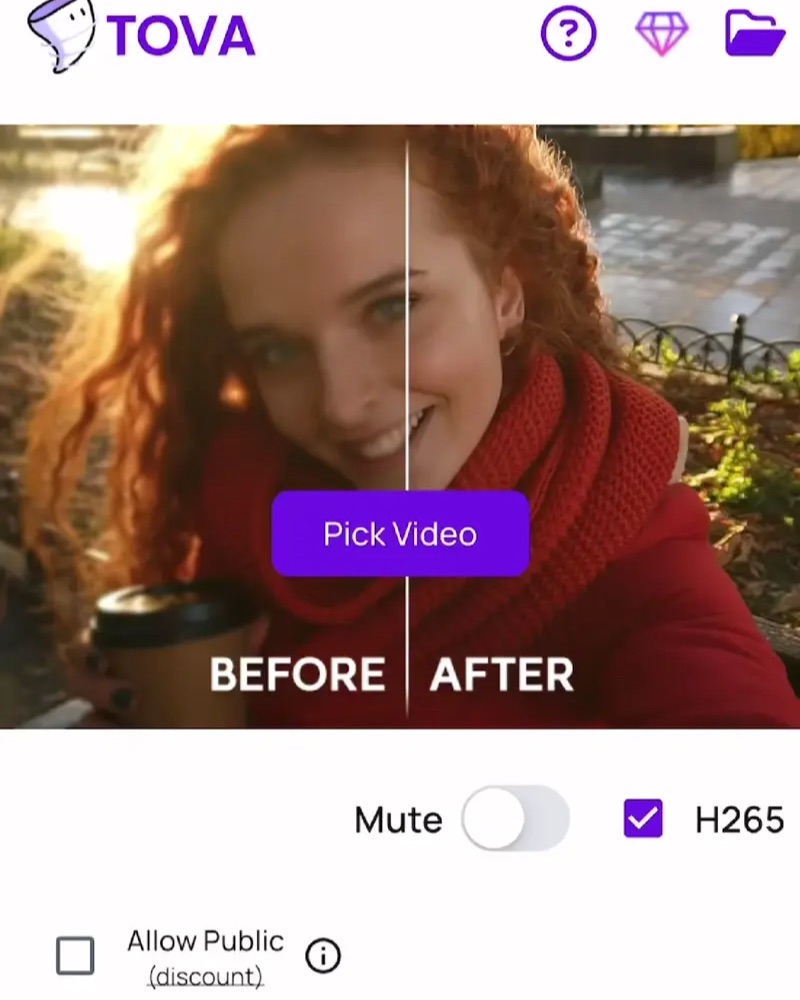
Open Quality Enhancer from the tools screen and choose Select Video. The current app checks Pro access before entry. Review the terms shown in the app and start with a short test video rather than a long recording.
Prepare the device
This tool processes video on the device. Duration, resolution and device performance affect processing time. Allow space for the source and output, and check the progress screen for completion or an error. Do not expect every video to finish in the same time.
Compare still detail and moving texture
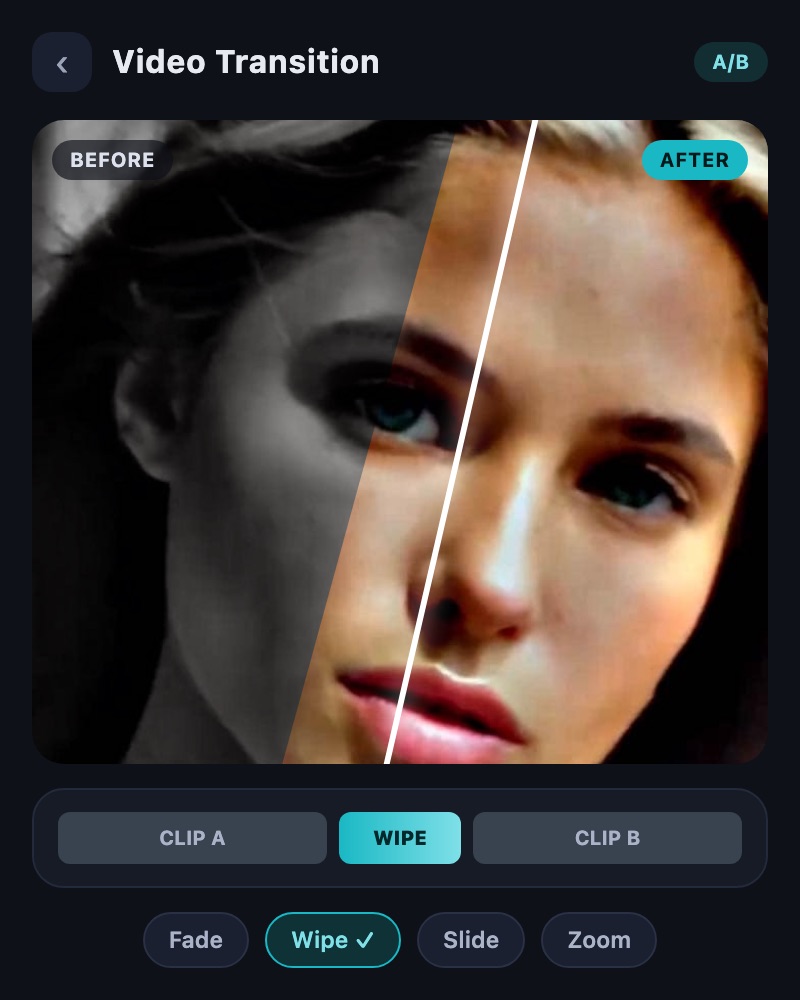
Compare Before and After at the same moment. Look beyond stronger edges: check for overly smooth skin or changed lettering. Then play the result and check that texture does not appear to shimmer from frame to frame.
Save, then finish the edit
Save a useful result before adding final cuts or text. Leave delivery compression until the end so you do not discard detail between processing stages. Keeping the original is also a valid choice if the result looks unnatural.
02 / Follow these steps
Follow these steps
Keep the best source and prepare a short test video.
Open Quality Enhancer and review the current access terms.
Choose the file with Select Video and follow processing progress.
Compare Before and After at the same moment when processing completes.
Inspect paused detail and moving texture.
Save the useful result and continue editing or sharing.
03 / Try this sequence
Try this sequence
Test a few seconds of an older family recording. Compare eyes, mouths, clothing patterns and background lettering, then watch the expressions in motion. A sharper background is not a sufficient improvement if a face looks different.
Before you export
- Have you found the best available source?
- Have you checked access terms and storage space?
- Have you compared faces and lettering at the same moment?
- Do texture and edges look natural in motion?
- Have you kept the original and output?
Frequently asked questions
Can it recover the exact words in unreadable text?
No exact recovery of missing information is guaranteed. For text or important records, finding a better original is the first priority.
Is it the same as color correction or interpolation?
They address different goals. Use the editor’s color controls for brightness and color, and explore Smooth Booster and the interpolation guide for motion.
Is the entire feature free?
Quality Enhancer currently requires a Pro access check. Review availability and terms in the app.
Does on-device processing finish instantly?
No. Duration, resolution and device conditions affect processing time. Test a short video first.
Available tools and export settings vary by app version and device. Check the app for the terms of AI generation and cloud processing.