TOVA / YOUTUBE SHORTS
Watch it in action

A short GIF preview: keep one moment, check the loop
For a reaction or a small travel memory, choose a short moment before exporting. This TOVA GIF concept preview plays an actual two-second GIF at 480 pixels wide and 15 fps. It is an export-use preview, not a recording from a released TOVA app. The sample has no sound and is about 3.07 MB; GIF is not a promise of a smaller file. Watch where the loop restarts, then test the file in the app where you intend to use it. Tell us below the video whether you would make a reaction or a travel memory.
Watch on YouTube ↗If the player is unavailable, watch on YouTube.
01 / Before you begin
Before you begin
Match the container and codec
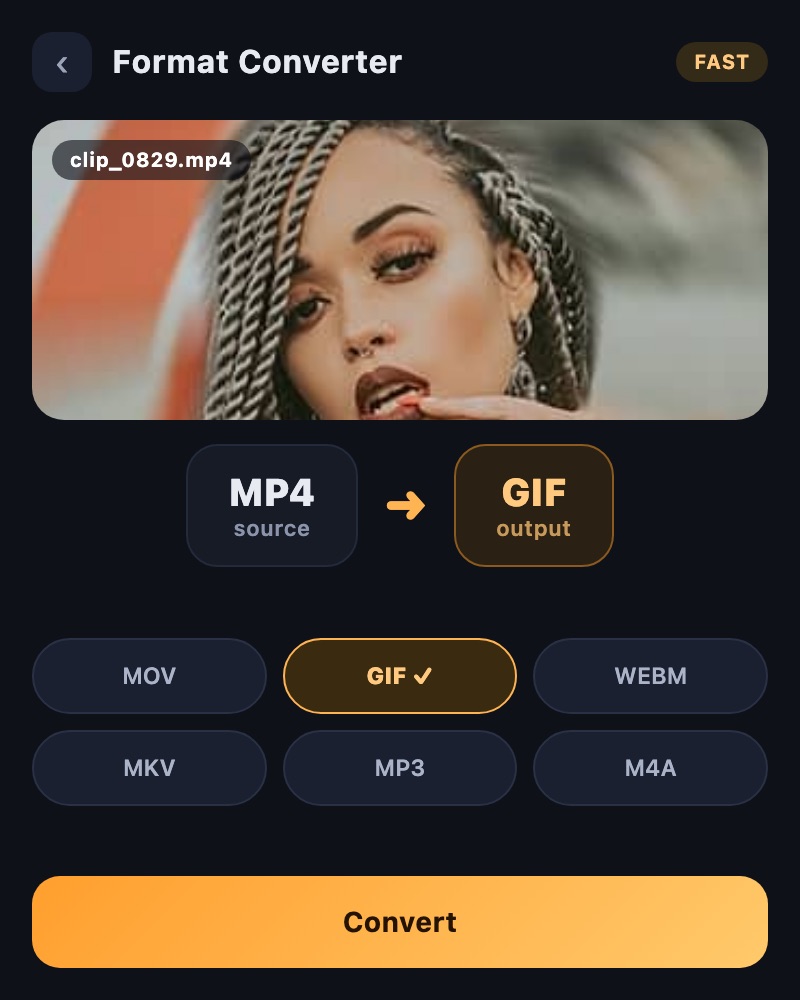
Output choices include MP4, MOV, AVI, MKV, WebM and GIF. A filename extension and the video codec inside it are different things. Choose a combination supported by the intended player using the options available in the app.
Set practical output conditions
Decide whether you need the full recording or a selected portion. Raising resolution or FPS does not restore information absent from the source, so choose the settings the destination actually needs.
Check playback and saving
Different formats may have different support in the photo library or on another device. Review the result screen’s available sharing and file-saving options, then test the output in its intended player.
Separate size problems from playback problems
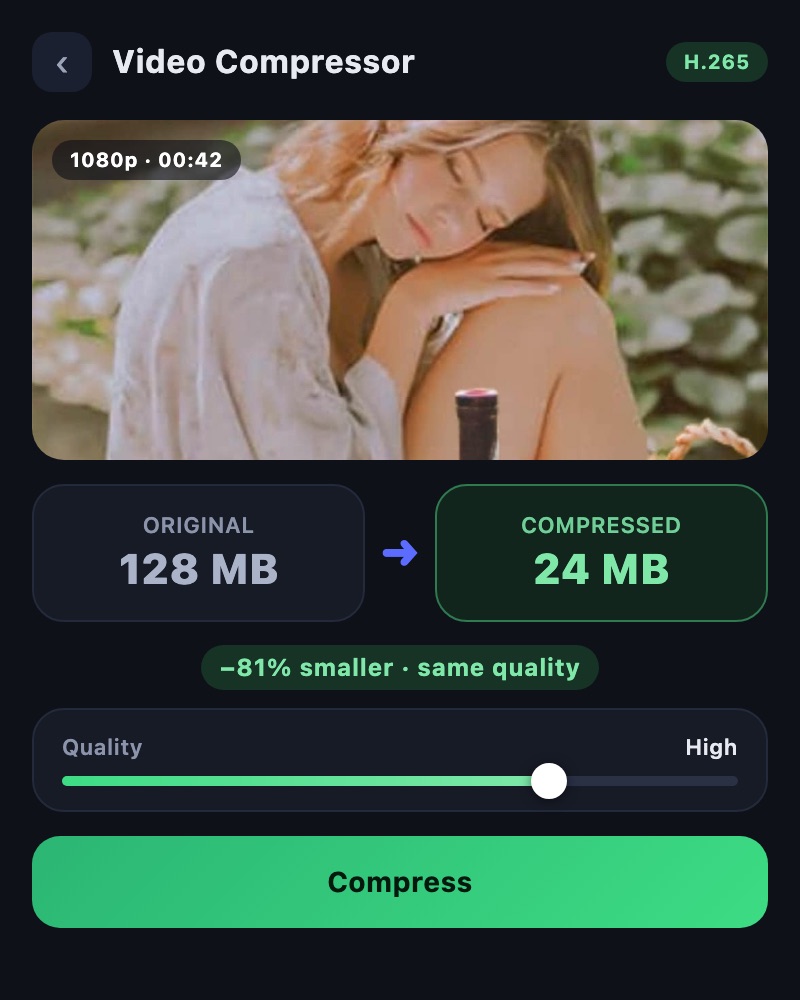
Use Video Compressor when size is the main obstacle. If the size is acceptable but playback fails, review format and codec in Format Converter. Conversion can re-encode the video and change both size and quality, so check the complete result.
MP4 can contain different codecs
MP4 is a container for video and audio; a codec such as H.264 or H.265 describes how the video is encoded. Renaming an extension to .mp4 is not conversion. Test a supported MP4 and H.264 combination with the audio you need, then check the receiving environment.
Use the source to choose resolution and FPS
Format Converter provides dimensions and frame-rate options based on the source. It is not an AI restoration or motion-interpolation tool. Follow the enhancement guides when detail or intermediate motion is the actual goal.
A short GIF preview: keep one moment, check the loop
For a reaction or a small travel memory, choose a short moment before exporting. This TOVA GIF concept preview plays an actual two-second GIF at 480 pixels wide and 15 fps. It is an export-use preview, not a recording from a released TOVA app. The sample has no sound and is about 3.07 MB; GIF is not a promise of a smaller file. Watch where the loop restarts, then test the file in the app where you intend to use it. Tell us below the video whether you would make a reaction or a travel memory.
02 / Follow these steps
Follow these steps
Select the source in Format Converter and decide which portion you need.
Choose the format and supported output settings for the destination.
Save or share the converted file and verify playback where it will be used.
03 / Try this sequence
Try this sequence
If someone cannot open a video, first identify the device and app they are using. Choose a supported codec as well as a container, then test a short output in that environment. This is more useful than repeatedly changing the extension without checking playback.
Before you export
- Does the destination support the chosen format?
- Are orientation and audio correct after conversion?
- Has the output retained enough visual detail?
Frequently asked questions
Does a GIF include audio?
GIF does not carry an audio track. Choose another supported video format when sound is part of the result.
Does changing FPS perform AI interpolation?
Choosing an output frame rate is different from AI interpolation. Explore Smooth Booster or the interpolation guide when you need generated intermediate frames.
Why might an MP4 file fail to play?
MP4 files can contain different video and audio codecs. Check supported combinations and test on the actual receiving device.
Does conversion always make the file smaller?
No. The chosen format, codec and settings can produce a larger result. Use the compression guide when size is the priority.
Available tools and export settings vary by app version and device. Check the app for the terms of AI generation and cloud processing.