01 / Before you begin
Before you begin
Keep the setup to the result
A key moment alone may not explain the challenge. Include a short lead-in showing the starting position or objective.
Avoid adding visual clutter
Game footage already contains text and numbers. Keep additional captions short and away from the HUD or scoreboard.
02 / Follow these steps
Follow these steps
Find the highlight in the recording and include a little context on either side.
Remove waiting and repeated attempts in Video Editor.
Adjust the speed of a key action if it passes too quickly to follow.
Check that important game sounds remain audible under any added music.
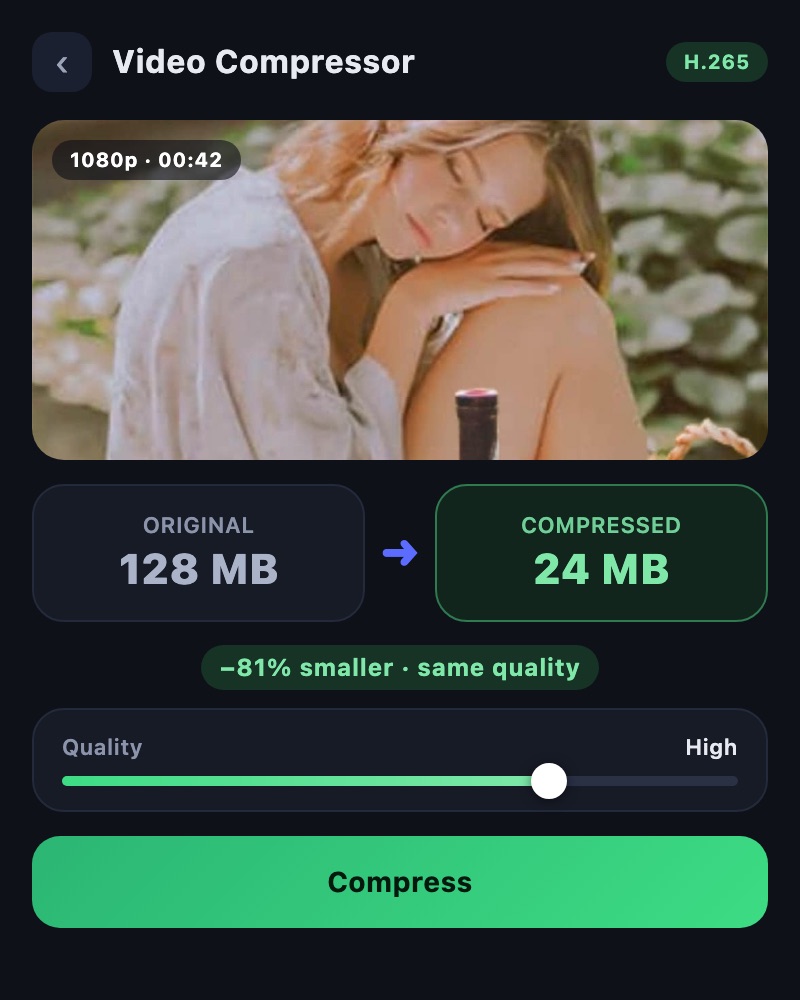
Save the finished video and prepare a separate compressed copy if sharing limits require it.
03 / Try this sequence
Try this sequence
Try setup, attempt, key action and result screen. Keep slow sections brief and allow enough time to see the outcome.
Before you export
- Are the HUD and scoreboard visible?
- Is there context around the key action?
- Is small text readable after compression?
Frequently asked questions
Does slowing a clip always make it smoother?
No. The source frame rate and processing method affect the result. Speed editing and frame interpolation are different operations, so preview a short section first.
Available tools and export settings vary by app version and device. Check the app for the terms of AI generation and cloud processing.